
Cabinet proposals
A proposal the homeowner can turn, read and approve.
When a design in Cabinet Maker Pro is ready to show, press Send proposal. Your client gets a private page with the room in 3D, the floor plan, each wall with its measurements and the cabinet list, and they can approve it or ask for changes right there. No account to make, nothing to install.
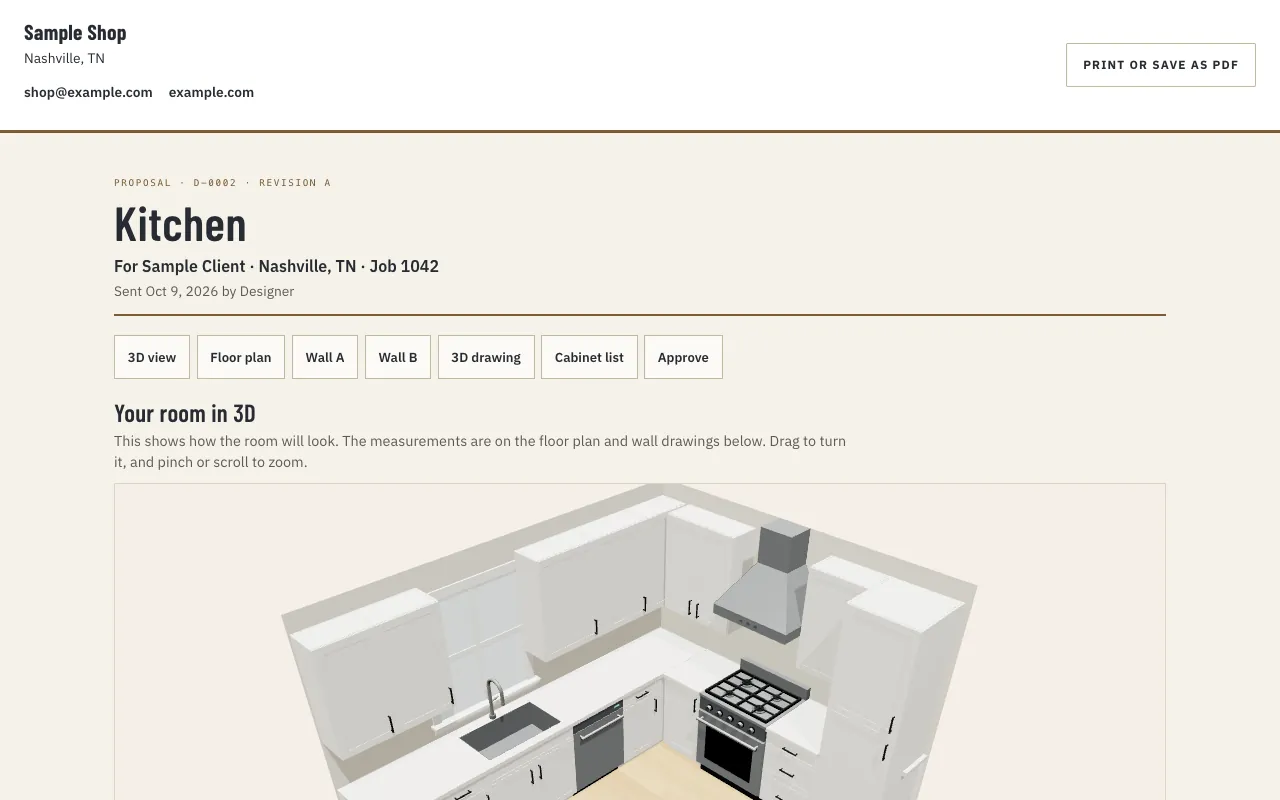
What the client sees
One page, from the top down.
- Your letterhead: the company name and logo from your account, with a Print or save as PDF button beside it.
- The job: the room’s name, the design number and revision, who it’s for, and who sent it and when. Your message is on the page too, and so is the price if you added one.
- Your room in 3D: the color model, which they drag to turn and pinch or scroll to zoom. Open the doors and Open the drawers work here just as they do in the editor.
- Floor plan and walls: the plan, then each wall as you’d see it standing in front of it, measured the way the client set measures it.
- 3D drawing: a line drawing of the whole room, for reference.
- Cabinet list: every cabinet and part, numbered to match the drawings, with the selections.
- Approve: the client types their name and ticks “I approve these drawings as drawn,” or opens the box underneath to tell you what they’d like changed.
A row of links across the top jumps straight to each part, so a homeowner who only cares about the island wall can go right to it.
Sending it
It goes out from your own email.
The Send proposal box asks for the client’s email, a subject and your message. Put {link} where the link to the drawings should go, and add a price if you want one shown on the proposal. Leave the price blank and the client sees the drawings alone.
- Gmail or Outlook opens a new message in your account with everything filled in.
- My email app does the same in the mail program on your computer.
- Just make the link gives you the address to paste into a text or your own note.
Whichever you choose, you look it over and press Send yourself. It leaves from your address, so when the homeowner replies, the answer lands in your inbox, not ours. When the app is set up to send mail, a Send it now button can send it for you instead.
The snapshot
They see the design as it was when you sent it.
A proposal freezes the design at the moment you press Send proposal. You can keep working on the room afterward, and the homeowner still sees what you showed them. When the changes are ready, make a new revision and send that one.
Approving says the drawings are right as drawn in that revision. Anything changed after that becomes a new revision, with its new letter on the proposal and in the title block of both printed sets.
What you see back
You’ll know where it stands.
Next to the Send proposal button, the design keeps a short status. It reads Not opened yet until the client clicks the link, then Opened, with how many times and how long ago. Once they approve, it reads Approved by with the name they typed and when. If they ask for changes instead, it reads Changes asked, and their note is quoted in the list of proposals.
Each design keeps a list of the proposals sent from it. Open or copy any link again from there, or withdraw one. A withdrawn link stops showing the drawings, and anyone who opens it is told it’s been withdrawn.
On paper too
For the client who wants to sign a sheet.
Some homeowners would rather hold the drawings. The client set prints the same plan, a 3D picture, the walls without the build dimensions, the cabinet list and an approval block to sign. The proposal page itself prints or saves as a PDF from its own button.
Once it’s approved, the build set goes to whoever builds or orders the job: see shop drawings and the cabinet cut list.
Answers
Questions about proposals
Sending one, what the homeowner can do with it, and taking it back.
Does my client need an account to see the proposal?
No. The link opens a private page in any web browser, with nothing to sign up for or install. Only someone who has the link can see it, and you can withdraw it whenever you like.
Can I show a price on a cabinet proposal?
Yes, if you want to. The Send proposal box has an optional price field, and whatever you type there is shown on the proposal along with your message. Leave it empty to send the drawings without a number.
How does a homeowner approve the drawings?
At the bottom of the proposal they type their full name, tick the box that says they approve the drawings as drawn in that revision, and press Approve. The design then shows Approved by that name. If they want something different, they write a note instead, and it comes back to you.
How do I know whether the client has looked at it?
The design tells you. A proposal shows Not opened yet until the link is used, then Opened, with the number of times and how long ago. Approved or Changes asked replaces that once the client answers.
What if I need to change the design after I send the proposal?
Keep working. The proposal stays as it was when you sent it, so the homeowner never sees a half-finished change. When it’s ready, make a new revision and send a fresh proposal, and withdraw the old link if you don’t want it opened again.